Everything you need to know about using FocusCue for your presentations
Enter your script
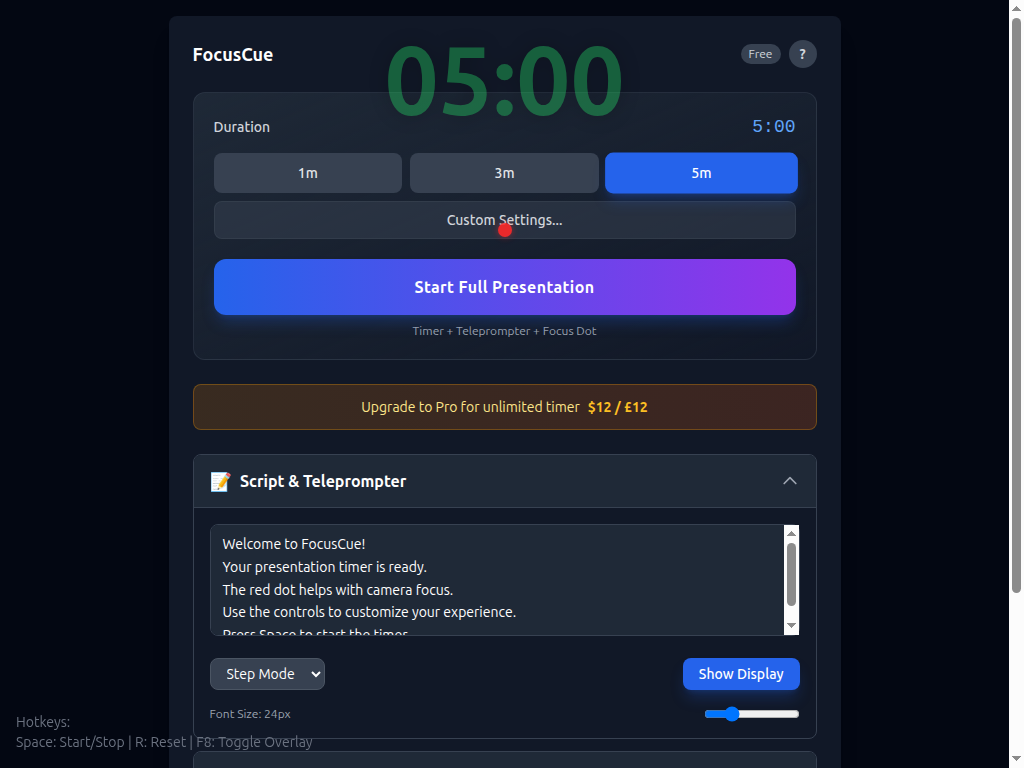
Open the "Script & Teleprompter" section and paste or type your presentation script
Set your timer duration
Choose a preset (1m, 3m, 5m) or click "Custom Settings" for more options
Start your presentation
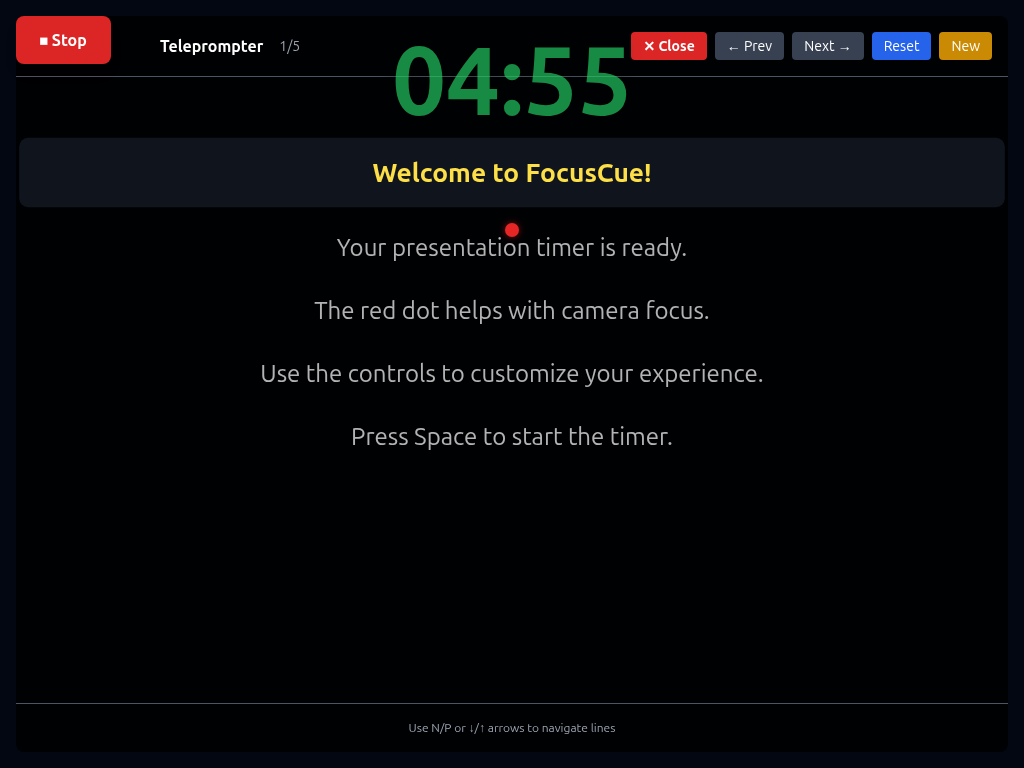
Click "Start Full Presentation" to begin the timer and display your script
Navigate your script
Use the arrow buttons or keyboard arrows to advance through your script lines
FocusCue is optimized for touch screens. Here's how to use it on your phone:
Enter your script
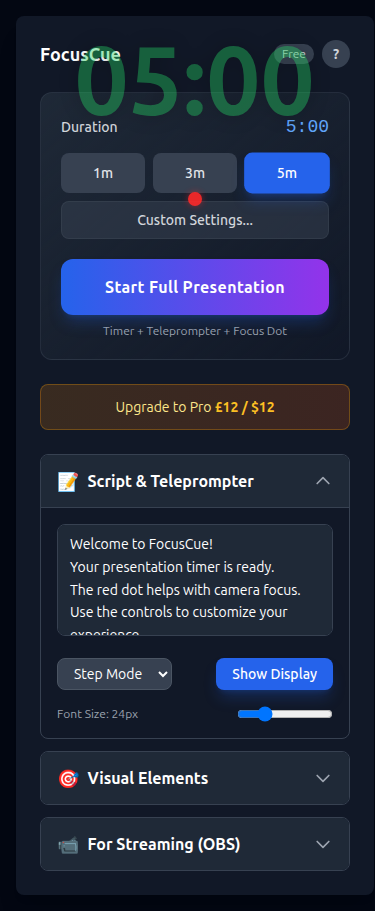
Tap the "Script & Teleprompter" section to expand it and paste your text
Select timer duration
Tap one of the preset buttons (1m, 3m, 5m)
Tap "Start Full Presentation"
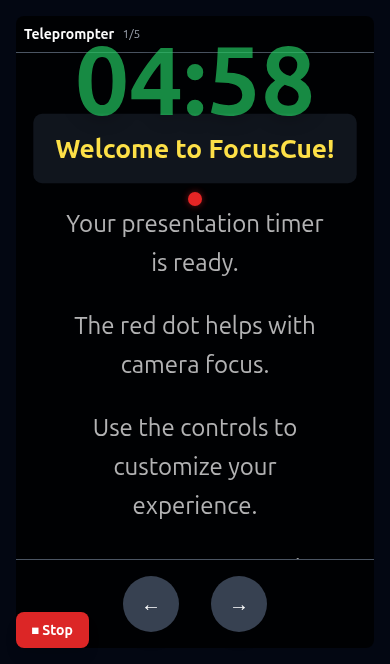
This starts the timer and displays your teleprompter
Use the arrow buttons to navigate
Tap ← and → buttons at the bottom to move through your script
Tap "Stop" when finished
The red Stop button is at the bottom left of your screen
On smartphones, navigation buttons appear at the bottom for easy thumb access:
Main interface on smartphone
Presentation mode with navigation buttons
Quick-select buttons for common presentation lengths:
Pro users get unlimited duration
The timer changes color to help you pace your presentation:
Click "Custom Settings" to access advanced timer options:
Navigate your script one line at a time:
Continuous scrolling for smoother reading:
A small red dot to help you maintain eye contact with your camera:
Tip: Position the dot near your webcam so you naturally look at the camera while reading
The overlay URL includes customizable parameters:
duration - Timer duration in secondswarn - Warning threshold in secondspanic - Panic threshold in secondsdot - Focus dot size in pixelsopacity - Overlay opacity (0-1)These shortcuts work when the app window is focused (tablet and desktop):
The free version has a 5-minute limit. Upgrade to Pro for just $12/£12 (one-time payment) to unlock unlimited timer duration.
After purchasing, you'll receive a license key via email. To activate:
Your Pro status is saved in your browser. If you use a different browser or device, simply enter your license key again.
No problem! You can recover your license key:
Yes! Your script is automatically saved in your browser's local storage. It will be there when you return, even after closing the browser. Note: Clearing browser data will remove saved scripts.
Yes! FocusCue is fully responsive and works on smartphones and tablets. The interface automatically adapts for touch screens with larger buttons at the bottom for easy thumb access.
The app needs to be loaded initially from the internet, but once loaded, the timer and teleprompter work without an active connection. Your settings are stored locally in your browser.
For support, please email us at bryan@ai-regenesis.com. We typically respond within 24-48 hours.